# 设置 Auth0
{% hint style="info" %}
前往我们的指南,了解一个 [完整的操作流程](https://gitbook.com/docs/guides/product-guides/how-to-personalize-your-gitbook-site-using-auth0-and-adaptive-content) 关于使用 Auth0 设置已认证访问和自适应内容。
{% endhint %}
{% hint style="warning" %}
本指南将引导您为文档设置一个受保护的登录界面。在阅读本指南之前,请确保您已经先完成 [启用已认证访问](https://gitbook-open-v2-preview.gitbook.workers.dev/url/gitbook.com/docs/documentation/zh/publishing-documentation/authenticated-access/enabling-authenticated-access).
{% endhint %}
要使用 Auth0 为您的 GitBook 站点设置已认证访问,流程如下:
{% stepper %}
{% step %}
[**在 Auth0 中创建一个新应用程序**](#id-1.-create-a-new-application-in-auth0)
在您的 Auth0 仪表板中创建一个 Auth0 应用程序。
{% endstep %}
{% step %}
[**安装并配置 Auth0 集成**](#id-2.-install-and-configure-the-auth0-integration)
安装 Auth0 集成,并将所需配置添加到您的 GitBook 站点。
{% endstep %}
{% step %}
[**为自适应内容配置 Auth0(可选)**](#id-3.-configure-auth0-for-adaptive-content-optional)
配置 Auth0 以便与 GitBook 中的自适应内容配合使用。
{% endstep %}
{% endstepper %}
### 1. 在 Auth0 中创建一个新应用程序
首先在您的 Auth0 平台仪表板中创建一个新应用程序。此应用程序将允许 GitBook Auth0 集成在授予用户访问您的站点之前请求令牌以验证用户身份。
1. 登录到您的 Auth0 [控制台](https://manage.auth0.com/dashboard/).
2. 前往 **应用程序 > 应用程序** 部分,从左侧边栏中。
3. 点击你站点设置右上角的 **+ 创建应用程序** 按钮,并为您的应用命名。
4. 在 **选择一种应用程序类型,** 选择 **常规 Web 应用程序**.
5. 在 **快速入门** 在新创建的应用的屏幕中,选择 **Node.js(Express)** 并且随后将 **我想集成我的应用**.
6. 然后您应该会看到如下配置界面。\
点击 **保存设置并继续**.
 7. 点击你站点设置右上角的 **设置** 选项卡。
8. 复制并记下 **域名**, **客户端 ID** 并在 **客户端密钥**.
{% hint style="warning" %}
请确保您已在 **至少启用了一个连接** 下的 Auth0 应用程序, **连接** 选项卡。
{% endhint %}
### 2. 安装并配置 Auth0 集成
创建 Auth0 应用程序后,下一步是在 GitBook 中安装 Auth0 集成,并使用您之前生成的凭据将其与您的 Auth0 应用程序关联:
1. 导航到您已启用已认证访问并希望将 Auth0 用作身份提供方的站点。
2. 点击你站点设置右上角的 **集成** 按钮。
7. 点击你站点设置右上角的 **设置** 选项卡。
8. 复制并记下 **域名**, **客户端 ID** 并在 **客户端密钥**.
{% hint style="warning" %}
请确保您已在 **至少启用了一个连接** 下的 Auth0 应用程序, **连接** 选项卡。
{% endhint %}
### 2. 安装并配置 Auth0 集成
创建 Auth0 应用程序后,下一步是在 GitBook 中安装 Auth0 集成,并使用您之前生成的凭据将其与您的 Auth0 应用程序关联:
1. 导航到您已启用已认证访问并希望将 Auth0 用作身份提供方的站点。
2. 点击你站点设置右上角的 **集成** 按钮。
 3. 点击 **已认证访问** 在侧边栏的分类中。
4. 选择 **Auth0** 集成。
5. 点击 **安装到此站点**.
3. 点击 **已认证访问** 在侧边栏的分类中。
4. 选择 **Auth0** 集成。
5. 点击 **安装到此站点**.
 6. 在你的站点上安装集成后,你应该会看到该集成的配置界面:
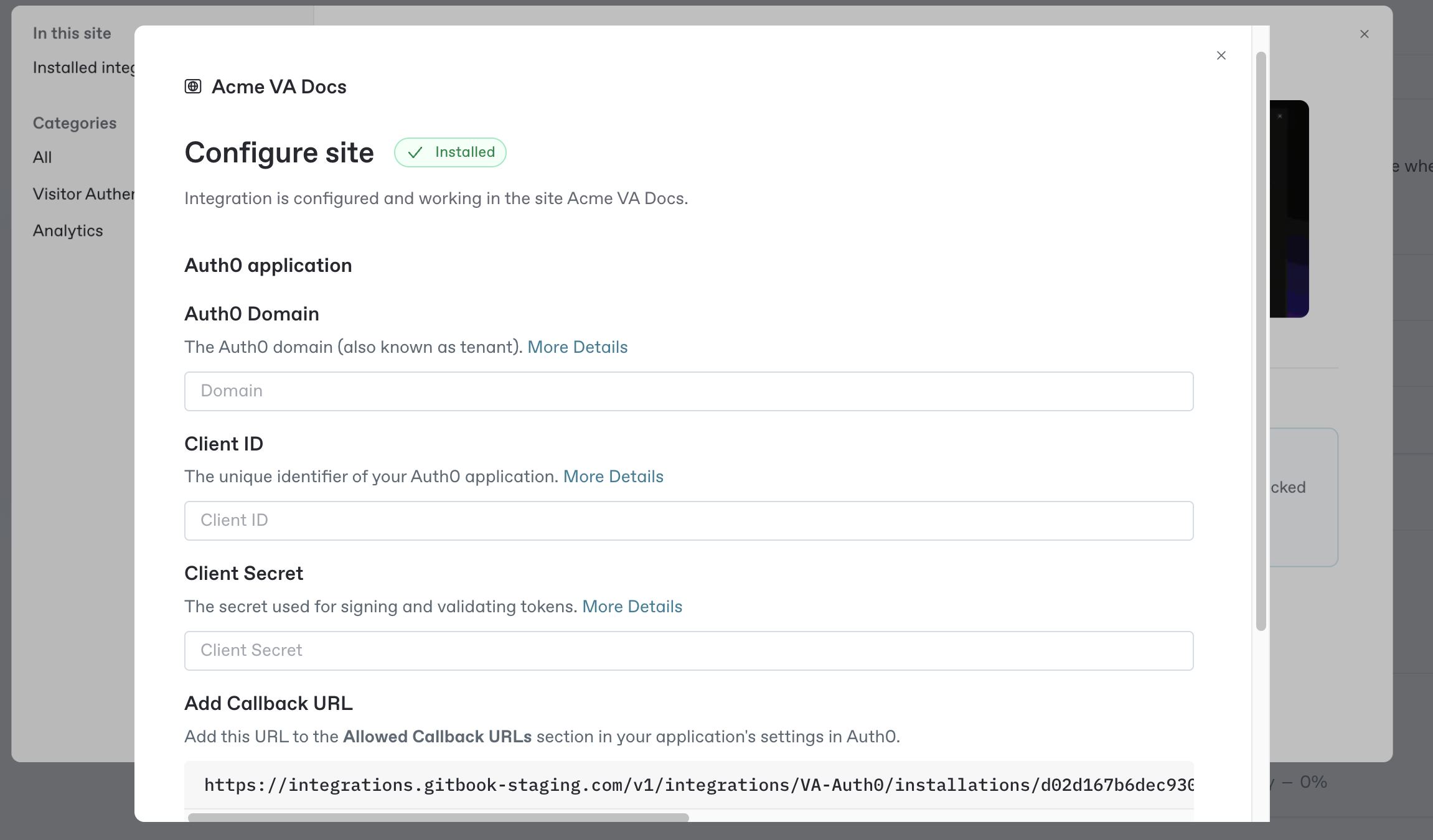 7. 输入你之前在 **域名**, **客户端 ID** 并在 **客户端密钥** 您之前创建 Auth0 应用程序后复制的值。对于 Auth0 域名,请输入从 Auth0 复制的 Domain(请确保在其前面加上 `https://`).
8. **(可选)** 启用 **在 JWT 令牌中包含声明** 如果您已将站点启用为 [自适应内容](https://gitbook-open-v2-preview.gitbook.workers.dev/url/gitbook.com/docs/documentation/zh/publishing-documentation/adaptive-content/enabling-adaptive-content).
9. 复制并记下 **回调** **URL** 显示的 **在对话框底部**.
10. 点击 **保存**.
11. 返回到您之前在 Auth0 仪表板中创建的 Auth0 应用程序。
12. 浏览到 **应用程序 > 应用程序** 在侧边栏中并选择 **设置** 选项卡。
13. 向下滚动到 **应用程序 URI** 设置部分
14. 粘贴 **回调 URL** 您之前从 GitBook 集成对话框中复制的内容到 **允许的回调 URL** 输入字段。
15. 点击 **保存。**
16. 返回到 **Auth0 集成** 安装页面 **在 GitBook 中**.
17. 关闭集成对话框,然后点击站点页面中的 **设置** 选项卡。
18. 浏览到 **受众** 并选择 **已认证访问** (如果尚未选中)。
19. 选择 **Auth0** 从下拉菜单中 **身份验证后端** 部分。
20. 点击 **更新受众**.
21. 前往站点概览页面并点击 **发布** 如果站点尚未发布。
您的站点现在已通过 Auth0 作为身份提供方,以已认证访问方式发布。
要进行测试,请点击 **中定义的视觉样式**。系统会要求您使用 Auth0 登录,这将确认您的站点已通过 Auth0 以已认证访问方式发布。
### 3. 为自适应内容配置 Auth0(可选)
{% embed url="" %}
要在您的已认证访问站点中利用自适应内容功能, [配置 Auth0 应用程序](https://auth0.com/docs/secure/tokens/json-web-tokens/create-custom-claims) 以在认证令牌中将额外的用户信息作为声明包含进去。
这些声明以键值对形式表示,会传递给 GitBook,并可用于 [自适应内容](https://gitbook-open-v2-preview.gitbook.workers.dev/url/gitbook.com/docs/documentation/zh/publishing-documentation/adaptive-content/adapting-your-content) ,以动态方式服务于你站点的访客。
7. 输入你之前在 **域名**, **客户端 ID** 并在 **客户端密钥** 您之前创建 Auth0 应用程序后复制的值。对于 Auth0 域名,请输入从 Auth0 复制的 Domain(请确保在其前面加上 `https://`).
8. **(可选)** 启用 **在 JWT 令牌中包含声明** 如果您已将站点启用为 [自适应内容](https://gitbook-open-v2-preview.gitbook.workers.dev/url/gitbook.com/docs/documentation/zh/publishing-documentation/adaptive-content/enabling-adaptive-content).
9. 复制并记下 **回调** **URL** 显示的 **在对话框底部**.
10. 点击 **保存**.
11. 返回到您之前在 Auth0 仪表板中创建的 Auth0 应用程序。
12. 浏览到 **应用程序 > 应用程序** 在侧边栏中并选择 **设置** 选项卡。
13. 向下滚动到 **应用程序 URI** 设置部分
14. 粘贴 **回调 URL** 您之前从 GitBook 集成对话框中复制的内容到 **允许的回调 URL** 输入字段。
15. 点击 **保存。**
16. 返回到 **Auth0 集成** 安装页面 **在 GitBook 中**.
17. 关闭集成对话框,然后点击站点页面中的 **设置** 选项卡。
18. 浏览到 **受众** 并选择 **已认证访问** (如果尚未选中)。
19. 选择 **Auth0** 从下拉菜单中 **身份验证后端** 部分。
20. 点击 **更新受众**.
21. 前往站点概览页面并点击 **发布** 如果站点尚未发布。
您的站点现在已通过 Auth0 作为身份提供方,以已认证访问方式发布。
要进行测试,请点击 **中定义的视觉样式**。系统会要求您使用 Auth0 登录,这将确认您的站点已通过 Auth0 以已认证访问方式发布。
### 3. 为自适应内容配置 Auth0(可选)
{% embed url="" %}
要在您的已认证访问站点中利用自适应内容功能, [配置 Auth0 应用程序](https://auth0.com/docs/secure/tokens/json-web-tokens/create-custom-claims) 以在认证令牌中将额外的用户信息作为声明包含进去。
这些声明以键值对形式表示,会传递给 GitBook,并可用于 [自适应内容](https://gitbook-open-v2-preview.gitbook.workers.dev/url/gitbook.com/docs/documentation/zh/publishing-documentation/adaptive-content/adapting-your-content) ,以动态方式服务于你站点的访客。